 Cara Cloning Template
 - Berawal dari saya mencari di mbah google template Blogger Valid HTML5 + Responsive untuk mengganti template default bawaan dari blogger untuk Blog Sederhana saya ini, namun semuanya tidak sesuai dengan selera/keinginan saya hehehe :D Dalam pencarian Template Valid HTML5, saya di arahkan mbah google ke blog master om
Agus Ramadhani dan
Kang IsmetSaya suka Tema Template kedua master Blog ini. Nah di sini muncul ide kreatif saya untuk meng-cloning template master blog ini. (Maaf ya om Agus dan Kang Ismet) hehehe Piss \m/_.._\m/ saya hanya sekedar mengembangkan kreatifitas saya, dan tidak akan share hasil Template clonengan buatan saya :).
Pertama kali saya clonng template
Kang Ismet dan berhasil. Berikut screenshoot nya :

Waktu Pembuatan template clonengan hanya membutuhkan waktu dua jam, termasuk menyusun formulasi template, dan menemukan kode kode yang disembunyikan atau yang tidak ditampilkan, sampai proses upload template di blogger. Dalam pembuatan template, anda tidak perlu repot-repot mencari template yang mirip mirip template bawaan template orang yang anda akan di cloning. cukup copy source code templatenya saja.
Disini saya tidak akan share hasil Template clonengan blog master buatan saya, namun saya akan memberitahukan cara cloning template blog orang lain. Okay !! mari kita langsung aja caranya (simak baik-baik) :
Dalam Bahasan postingan ini, saya kasih contoh cloning template blog saya sendiri, hasil clonengan dari template Blog om master blog
Agus Ramadhani atau biasa dikenal di sebut
o-om.comPertamaHal pertama yang anda lakukan pilih salah satu postingan template target anda, terserah anda postingan apa aja!!. Setelah memilih salah satu postingan, lalu klik kanan di area bebas.
Klik Kanan > Lihat Code Sumber Laman. Jika browser di kommputer anda berbahasa inggris kira-kira seperti ini:
Right Click > See Source Code. (saya menggunakan Browser Firefox Berbahasa Indonesia). Lalu buat
Notepad, dan copy semua Source code halaman postingan pilihan anda, Paste lalu beri Judul notepad anda "dplkt-halaman-postingan.txt" (tanpa tanda kutip). atau "dplkt-halaman-postingan.xml" (tanpa tanda kutip). Jangan Lupa Buat Folder Baru dan Beri judul "Duplikat Template" (Tanpa Tanda Kutip). Simpan Hasil Copian Sorce Code anda di folder tersebut, biar gampang di ingat.
KeduaPerlu di ketahui, susunan Template Blog umumnya seperti ini :
- Header Wrapper terdiri dari Header Left dan Header Right. (pada Template duplikat saya, seperti ini Header Inner dan .blog-desc)
- Outer Wrapper terdiri dari Main Wrapper dan Sidebar Wrapper.
- Footer Wrapper terdiri dari Bottom Left, Bottom Center dan Bottom Right
- Credit Wrapper.
Okay!! anda mulai dari bawah code HTML dulu, hasil dari copian sorce code tadi. Cari dan perhatikan baik-baik code pada bagian
Footer Wrapper, misalnya seperti ini:
<div id='footer-wrapper'>Susunan code bagian
Footer Wrapper dari template duplikat saya, terdiri dari :
<div id='footer-wrapper'>
<div id='bottom'> ..... susunan dari Bottom terdiri dari :
- left-bottom
- center-bottom
- right-bottom
<div id='upper-footer'> dan
<div class='credits'>
Contoh code pada bagian
Footer Wrapper:
<div id='footer-wrapper'>
<div id='bottom'>
<div class='bottom section section' id='left-bottom'><div class='widget HTML' id='HTML4'>
<h2 class='title'>About Me</h2>
<div class='widget-content'>
<div class="profile-textblock">
<!-- isi widget ABOUT ME saya hapus -->
</div>
</div>
</div></div>
Note:
- Perhatikan code yang berwarna merah. yang berwarna merah, Hapus saja.
- Perhatikan code yang berwarna Hijau, code div ganti dengan b:section lalu tambahkan preferred='yes' di belakang code id='left-bottom', sehingga hasilnya seperti ini :
<b:section class='bottom section' id='left-bottom' preferred='yes'/>
Lalu lanjut pada bagian
center-bottom dan
right-bottom. dan hasil lengkap dari
b:section widget pada sub bagian
bottom seperti ini :
<b:section class='bottom section' id='left-bottom' preferred='yes'/>
<b:section class='bottom section' id='center-bottom' preferred='yes'/>
<b:section class='bottom section' id='right-bottom' preferred='yes'/>
Hasil Selengkapnya pada sub bagian
Bottom dari
Footer Wrapper seperti ini :
<div id='footer-wrapper'>
<div id='bottom'>
<b:section class='bottom section' id='left-bottom' preferred='yes'/>
<b:section class='bottom section' id='center-bottom' preferred='yes'/>
<b:section class='bottom section' id='right-bottom' preferred='yes'/>
<div id='upper-footer'>
<b:section class='footer section' id='footer' preferred='yes'/>
</div> <!-- end upper footer -->
</div> <!-- end bottom -->
<div class='credits'>
</div> <!-- end credits -->
</div> <!-- end footer wrapper -->
Note:
Perhatikan dan teliti baik-baik code
</div> sebagai code penutup. Jangan sampai ada yang salah dalam penempatan code
</div> tersebut.
KetigaLanjut pada bagian
Outer Wrapper yang terdiri dari
Main Wrapper dan
Sidebar Wrapper.
Contoh susunan bagian Outer Wrapper :
<div id='main-wrapper'>
<div id='main-wrapper-border'> <-- ini sekedar tambahan style border saja, sebelah kanan body postingan tebalnya 5px
<div id='sidebar-wrapper'>
Pada bagian
Outer Wrapper ini, sama seperti cara menyusun bagian
Footer Wrapper, namun khusus pada bagian
b:section Main, anda sisa meng-copy saja code template yang lama milik anda. Contohnya seperti ini :
<div id='outer-wrapper'>
<div id='main-wrapper'>
<div id='main-wrapper-border'>
<b:section class='main' id='main' showaddelement='no'>  <---(star copy) mulai copy semua code b:section Main, dari template blog anda yang lama sampai....
<b:widget id='Blog1' locked='true' title='Posting Blog' type='Blog'>
<b:includable id='main' var='top'>
.
.
.
<!-- bla bla bla bla bla -->
.
.
.
</b:includable>
</b:widget>
</b:section> <-- sampai dengan akhir dari code ini
</div> <!-- end main wrapper border -->
</div> <!-- end main wrapper -->
Note:
- Yang berwarna biru mulai star peng-copian dari template blog lama anda sampai akhir dari
</b:section>. - Khusus code
</div> penutup untuk Outer Wrapper belum ditambahkan dari keterangan diatas, karena masih ada Sidebar Wrapper. Nantinya code </div> penutup untuk Outer Wrapper akan di sematkan tepat dibawah Sidebar Wrapper. - Dalam kasus ini, saya meng-copy isi code Main Wrapper dari template default bawaan blogger. mengingat masih lengkap, masih perawan, Karena belum ada pengurangan atau pengeditan yang saya lakukan dari template default bawaan blogger tersebut. (isi dari code Blog Post dan isi code Comments).
Selanjutnya, anda lanjut pada sub bagian Sidebar Wrapper. Lihat contoh di bawah ini :
<div id='sidebar-wrapper'>
<div class='inner-box section section' id='inner-box'><div class='widget Feed' id='Feed1'>
<h2>New Post</h2>
<div class='widget-content' id='Feed1_feedItemListDisplay'>
<span style='filter: alpha(25); opacity: 0.25;'>
<a href='http://metropersonal.blogspot.com/feeds/posts/default'>Memuat...</a>
</span>
</div>
</div>
Note:
- Perhatikan code yang berwarna merah. yang berwarna merah, Hapus saja.
- Perhatikan code yang berwarna Hijau, code div ganti dengan b:section lalu tambahkan preferred='yes' di belakang code id='inner-box', sehingga hasilnya seperti ini :
<b:section class='inner-box section' id='inner-box' preferred='yes'/>
Hasil Selengkapnya pada sub bagian
Sidebar Wrapper dari
Outer Wrapper seperti ini :
<div id='sidebar-wrapper'>
<b:section class='inner-box section' id='inner-box' preferred='yes'/>
</div> <!-- end sidebar wrapper -->
Dan sebagai penutup bahasan bagian
Outer Wrapper, berikut Hasil Selngkap-lengkapnya :
<div id='outer-wrapper'>
<div id='main-wrapper'>
<div id='main-wrapper-border'>
<b:section class='main' id='main' showaddelement='no'> <---(star copy) mulai copy semua code b:section Main, dari template blog anda yang lama sampai....
<b:widget id='Blog1' locked='true' title='Posting Blog' type='Blog'>
<b:includable id='main' var='top'>
.
.
.
<!-- bla bla bla bla bla -->
.
.
.
</b:includable>
</b:widget>
</b:section> <-- sampai dengan akhir dari code ini
</div> <!-- end main wrapper border -->
</div> <!-- end main wrapper -->
<div id='sidebar-wrapper'>
<b:section class='inner-box section' id='inner-box' preferred='yes'/>
</div> <!-- end sidebar wrapper -->
<!-- spacer for skins that want sidebar and main to be the same height-->
<div class='clear'> </div> <!-- clear fix do not remove -->
<br/>
</div> <!-- end outer-wrapper -->
</div> <!-- end outer wrapper line -->
<div class='clear'/>
<div class='backtotop'><a href='#'>Back to Top</a></div>
Note:
- Perhatikan dan teliti baik-baik code
</div> sebagai code penutup. Jangan sampai ada yang salah dalam penempatan code </div> penutup tersebut. - Khusus untuk code penutup
</div> <!-- end outer wrapper line --> ini, fungsinya sebagai code </div> penutup dari data vocabulary Review, gunanya untuk merating semua postingan anda, letak tepatnya, anda bisa lihat tepat dibawah code <body>
KeempatSelanjutnya, anda lanjut pada bagian
Header Wrapper, sebagai akhir dari pembahasan code ini. Berikut Susunan code dari Header Wrapper :
<div id='branding'>
<div id='head-inner'>
<div id='header-wrapper'>
Header Wrapper terdiri dari
Blog Desc dan
Header. Pada bagian
Header Wrapper ini, sama seperti cara menyusun bagian
Outer Wrapper, namun khusus pada bagian
b:section Header, anda sisa meng-copy saja code template yang lama milik anda. Contohnya seperti ini :
<div id='branding'>
<div id='head-inner'>
<div id='header-wrapper'>
<b:section class='blog-desc section' id='blog-desc' preferred='yes' showaddelement='yes'/>
<b:section class='header' id='header' maxwidgets='1' showaddelement='no'> <---(star copy) mulai copy semua code b:section Header, dari template blog anda yang lama sampai....
<b:widget id='Header1' locked='true' title='Metro Personal (Header)' type='Header'>
<b:includable id='main'>
<b:if cond='data:useImage'>
<b:if cond='data:imagePlacement == "BEHIND"'>
.
.
.
<!-- bla bla bla bla bla -->
.
.
.
</b:includable>
</b:widget>
</b:section> <-- sampai dengan akhir dari code ini
</div> <!-- end header wrapper -->
</div> <!-- end head inner -->
</div> <!-- end branding -->
Note:
- Pada bagian blog-desc section, saya tambahkan showaddelement='yes' yang nantinya anda akan ganti menjadi 'no' setelah anda mengisi deskripsi tambahan agar supaya tidak ada penambahan widget lagi. Khusus deskripsi tambahan saja.
- Yang berwarna biru mulai star peng-copian dari template blog lama anda sampai akhir dari
</b:section>. - Perhatikan dan teliti baik-baik code
</div> sebagai code penutup. Jangan sampai ada yang salah dalam penempatan code </div> penutup tersebut.
Kelima (penutup)Rangkuman hasil Duplikat Template dari semua pembahasan code HTML diatas sebagai berikut :
<?xml version="1.0" encoding="UTF-8" ?>
<!DOCTYPE html>
<HTML>
<head>
<meta charset='utf-8'/>
<!-- Sisipkan Code META TAG disini -->
//////////////////////////////////////////////
<!-- Sisipkan Code CSS disini -->
]]></b:skin>
<!-- Sisipkan Code Javascript RELATED POST disini -->
<!-- Sisipkan Code Javascript AUTO READ MORE disini -->
<!-- Sisipkan Code Javascript MOBILE MENU disini -->
</head>
<body>
<div><div itemscope='' itemtype='http://data-vocabulary.org/Review'>
<div id='branding'>
<!-- Sisipkan Code Social Facebook dll disini -->
<!-- Sisipkan Code Search disini -->
<div id='head-inner'>
<div id='header-wrapper'>
<b:section class='blog-desc section' id='blog-desc' preferred='yes' showaddelement='yes'/>
<b:section class='header' id='header' maxwidgets='1' showaddelement='no'> <---(star copy) mulai copy semua code b:section Header, dari template blog anda yang lama sampai....
<b:widget id='Header1' locked='true' title='Metro Personal (Header)' type='Header'>
<b:includable id='main'>
<b:if cond='data:useImage'>
<b:if cond='data:imagePlacement == "BEHIND"'>
.
.
.
<!-- bla bla bla bla bla -->
.
.
.
</b:includable>
</b:widget>
</b:section> <-- sampai dengan akhir dari code ini.
</div> <!-- end header wrapper -->
</div> <!-- end head inner -->
</div> <!-- end branding -->
//////////////////////////////////////////////
<!-- Sisipkan Code Stripe Style disini -->
<div id='outer-wrapper'>
<!-- Sisipkan Code Javascript MOBILE MENU disini -->
<!-- Sisipkan Code Menu Navigasi disini -->
<div id='main-wrapper'>
<div id='main-wrapper-border'>
<b:section class='main' id='main' showaddelement='no'> <---(star copy) mulai copy semua code b:section Main, dari template blog anda yang lama sampai....
<b:widget id='Blog1' locked='true' title='Posting Blog' type='Blog'>
<b:includable id='main' var='top'>
.
.
.
<!-- bla bla bla bla bla -->
.
.
.
</b:includable>
</b:widget>
</b:section> <-- sampai dengan akhir dari code ini
</div> <!-- end main wrapper border -->
</div> <!-- end main wrapper -->
<div id='sidebar-wrapper'>
<b:section class='inner-box section' id='inner-box' preferred='yes'/>
</div> <!-- end sidebar wrapper -->
<!-- spacer for skins that want sidebar and main to be the same height-->
<div class='clear'> </div> <!-- clear fix do not remove -->
<br/>
</div> <!-- end outer-wrapper -->
</div> <!-- end outer wrapper line -->
<div class='clear'/>
<div class='backtotop'><a href='#'>Back to Top</a></div>
//////////////////////////////////////////////
<div id='footer-wrapper'>
<div id='bottom'>
<b:section class='bottom section' id='left-bottom' preferred='yes'/>
<b:section class='bottom section' id='center-bottom' preferred='yes'/>
<b:section class='bottom section' id='right-bottom' preferred='yes'/>
<div id='upper-footer'>
<b:section class='footer section' id='footer' preferred='yes'/>
</div> <!-- end upper footer -->
</div> <!-- end bottom -->
<div class='credits'>
</div> <!-- end credits -->
</div> <!-- end footer wrapper -->
</div>
</body>
</HTML>
Note:
Untuk code
Meta Tag silahkan kunjungi Blog Kedua Master yang saya sebutkan diatas,
disini dan
disiniBila ada yang kurang jelas silahkan tanyakan melalui kotak komentar dibawah. Selamat Mencoba!!
Keep Spirit and Keep Imagination...Enjoy!! :)
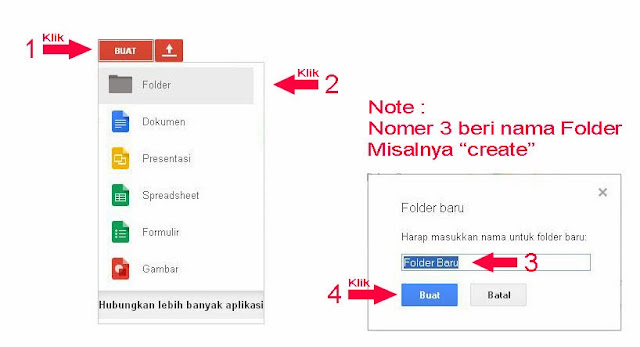
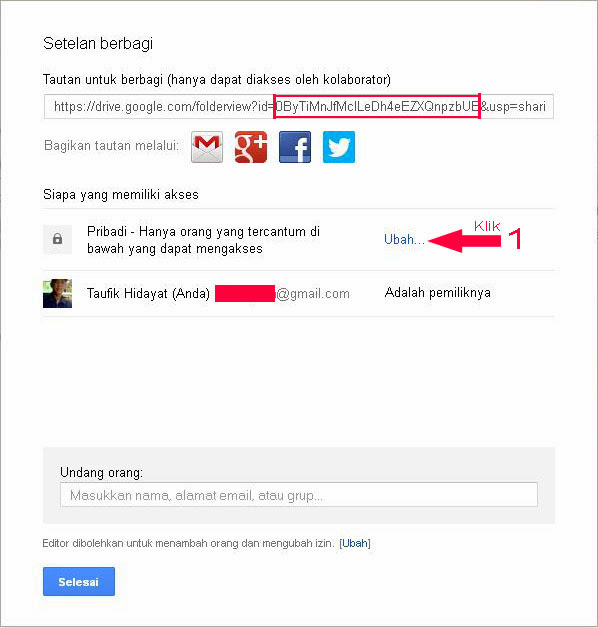
 Bagaimana Cara Menjadikan File HTML di Google Drive Menjadi File Host HTML Publik - Cloud Computing adalah suatu paradigma di mana informasi secara permanen tersimpan di server di internet dan tersimpan sementara di komputer pengguna (client) termasuk di dalamnya adalah komputer tablet, notebook, komputer desktop, handheld dan lain-lain.




 Kelebihan phpDesigner Editor 8 adalah PHP IDE dan PHP Editor fast built-in HTML5, CSS3 dan editor JavaScript. di tambah fitur menarik membantu dalam pembuatan website dan pembuatan template. Selain pengeditan PHP, phpDesigner 8 juga di lengkapi pengeditan HTML5, CSS3 dan JavaScript. Berikut fitur pendukung dari phpDesigner 8 :
 - Fast, powerful and intuitive to use
 Automatic Background Color different Every Post Blogger - Easy!! Find the code
 Using CSS/HTML to Make a Responsive Website - A website is responsive if it is able to adapt to the screen of the client. In this article, I�ll show you how to easily make a website responsive in three easy steps.